How to generate videos from a shoot?
In addition to photorealistic images, Veeton allows you to create short AI fashion videos from your completed shoots. These 5-second or 10-second videos are perfect for boosting engagement on e-commerce pages or social media.
If you are currently on the Free plan and want to generate a video, simply upgrade to any paid plan to unlock video generation.
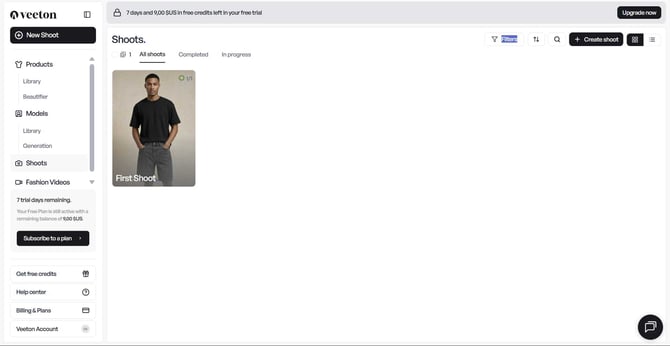
1. Open a completed shoot
- Go to your Shoots tab or the Recent Shoots section on your dashboard.
- Select the shoot containing the images you want to animate, then click on the camera icon.
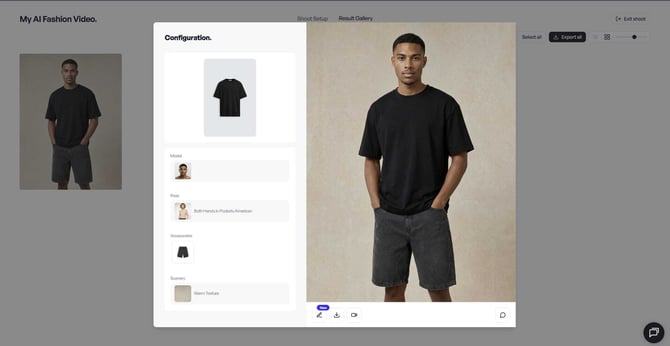
2. Choose a movement style
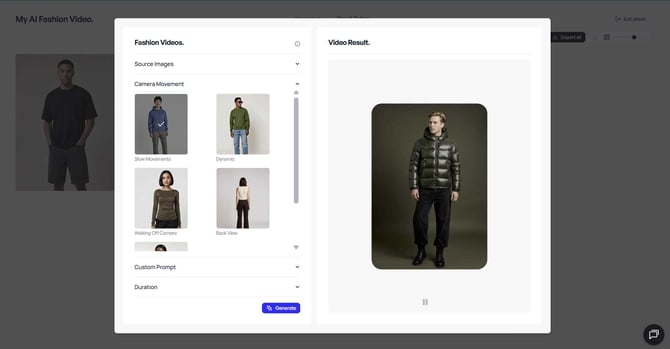
- You’ll see five readymade movement cards prepared by Veeton:
- Slow Movements
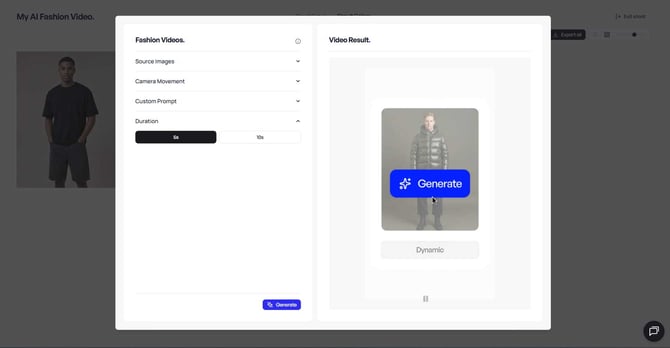
- Dynamic
- Walking Off Camera
- Back View
- Camera Movement
Select one of these pre-set movements to quickly define your video style.
3. Add a personal touch with a prompt
- Enter your own descriptive prompt in the text box if you want a custom motion or creative direction.
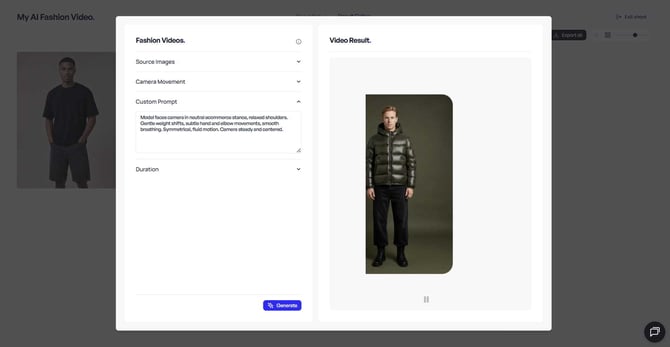
4. Configure your video settings
On the Configuration screen (see image above), adjust the following:
- Duration → Default is 5 seconds.
But you can also choose a 10-second duration, which allows you to generate a strong and impactful scenario for your video.
How to generate video from uploaded photo?
The difference between a video generated from a shoot and a video generated from an uploaded photo is simple: in the first case, you select an image you previously created in Veeton and click the “Generate video” button, while in the second case, you upload an image from your computer that was not produced in Veeton.
- To generate from uploaded photo, just click on “Fashion Video” on the left side bar.
- Upload the photo you want to use for a video. For example, a photo of an on model jacket, an image of your bag on a neutral background etc.
- Then follow the same steps:
- Select camera movements
- Custom prompt if you need to add details
- Choose duration of the video
And let’s generate!
What type of input is required?
Here are examples of the types of images you can upload, and the kind of results they can produce:
- Product photo on a neutral background: Generates a 360‑style video where the product rotates or moves slowly. This creates a premium, high‑end effect on your website.
- On‑model product photo: If the product is already worn by a model, you can turn that image into a dynamic video. This brings the product to life and helps customers better imagine themselves wearing it.
- Ghost mannequin product: Produces a clean, floating rotation of the item, keeping full focus on the product. This is original, eye‑catching, and ideal for highlighting details.
If you want to generate a video for a specific on model product, you must first create an on-model photoshoot of the product using the “New Shoot” workflow. Once the images are generated, you can animate them using the “Fashion Video” generation feature.
Click here to learn how to generate an on-model visual with Veeton.
How much does that cost?
Generating videos with Veeton gives you access to premium, dynamic visuals at a highly affordable cost.
- 1 sec costs 0.18 credit.
- Video generation is available on Starter, Pro, and Studio plans only.
How long does it take to generate my video?
- Veeton will render your video in just a few minutes, even for multiple animations.
Where can I use these videos?
- Once ready, your videos will appear in your shoot gallery for download.
- Use them on e‑commerce product pages, social media, or marketing campaigns to boost engagement.